
Contents
Website not showing on Google: how to find the cause in 15 minutes
In 15 minutes you can find out whether Google has indexed your site at all and which group of causes to look into. The key is not to mix up two different situations. If your pages are not in the index, Google will not show them for any search, and the cause is looked for on the technical side. If they are indexed but nobody finds you for the right words, the problem lies in the content, the mobile version, the language or the region.
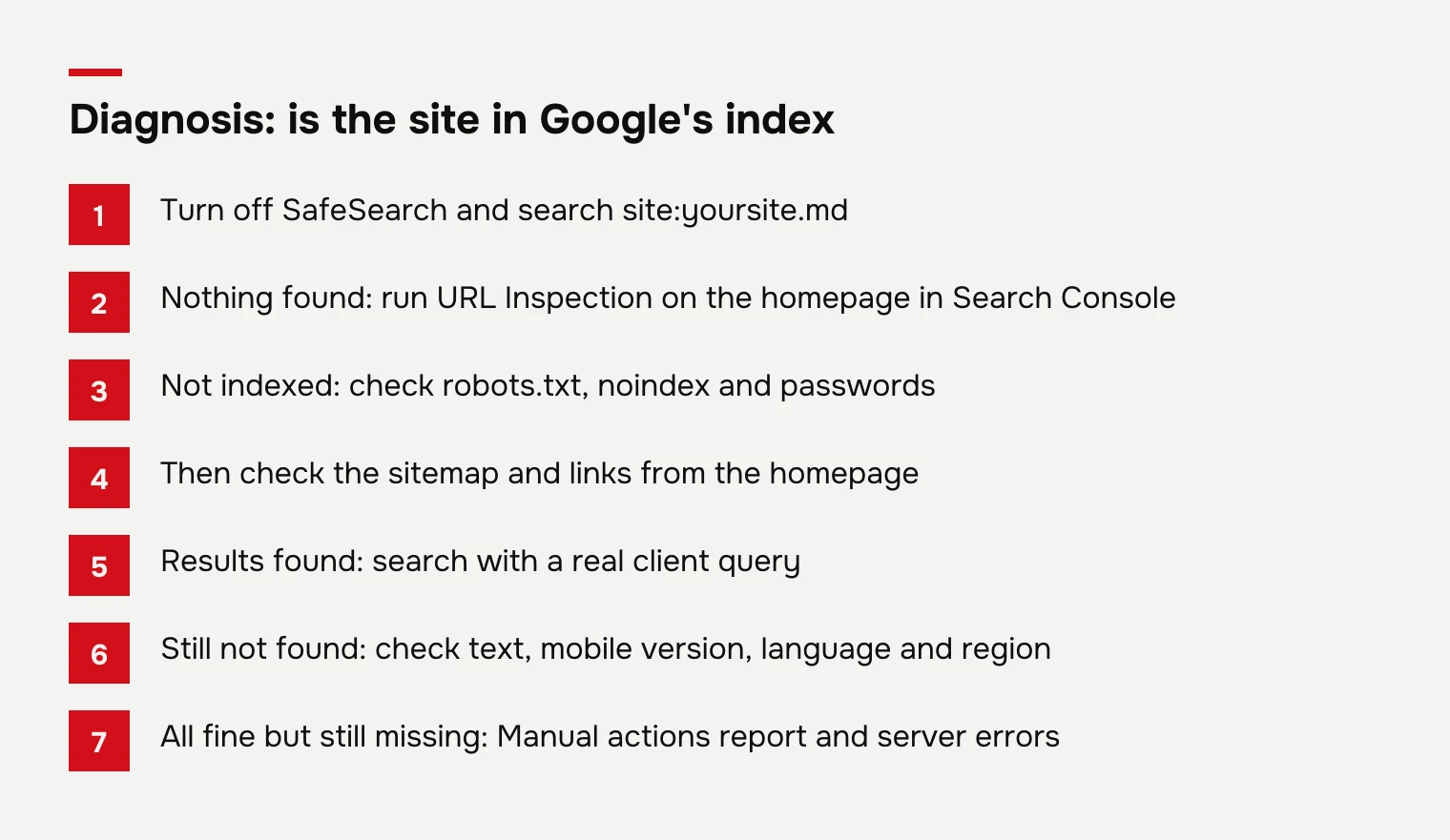
When TOLK AI launches a company website, the sitemap is submitted to Google at launch and indexing is monitored afterwards. If your pages already load in a browser but are nowhere in search, run the checks in this order:
- A site: search. Turn off SafeSearch and type
site:yoursite.mdinto Google. If even one result appears, the site is in the index, though not necessarily with every page. If nothing appears, you have an indexing problem: see reasons 1 to 4. - One important page. Type
site:followed by the full address of a specific page, such as the service page that should bring in enquiries. - URL Inspection. In Search Console, paste your homepage address into the URL Inspection bar. The tool shows whether the page is indexed, runs a live test and lets you request indexing.
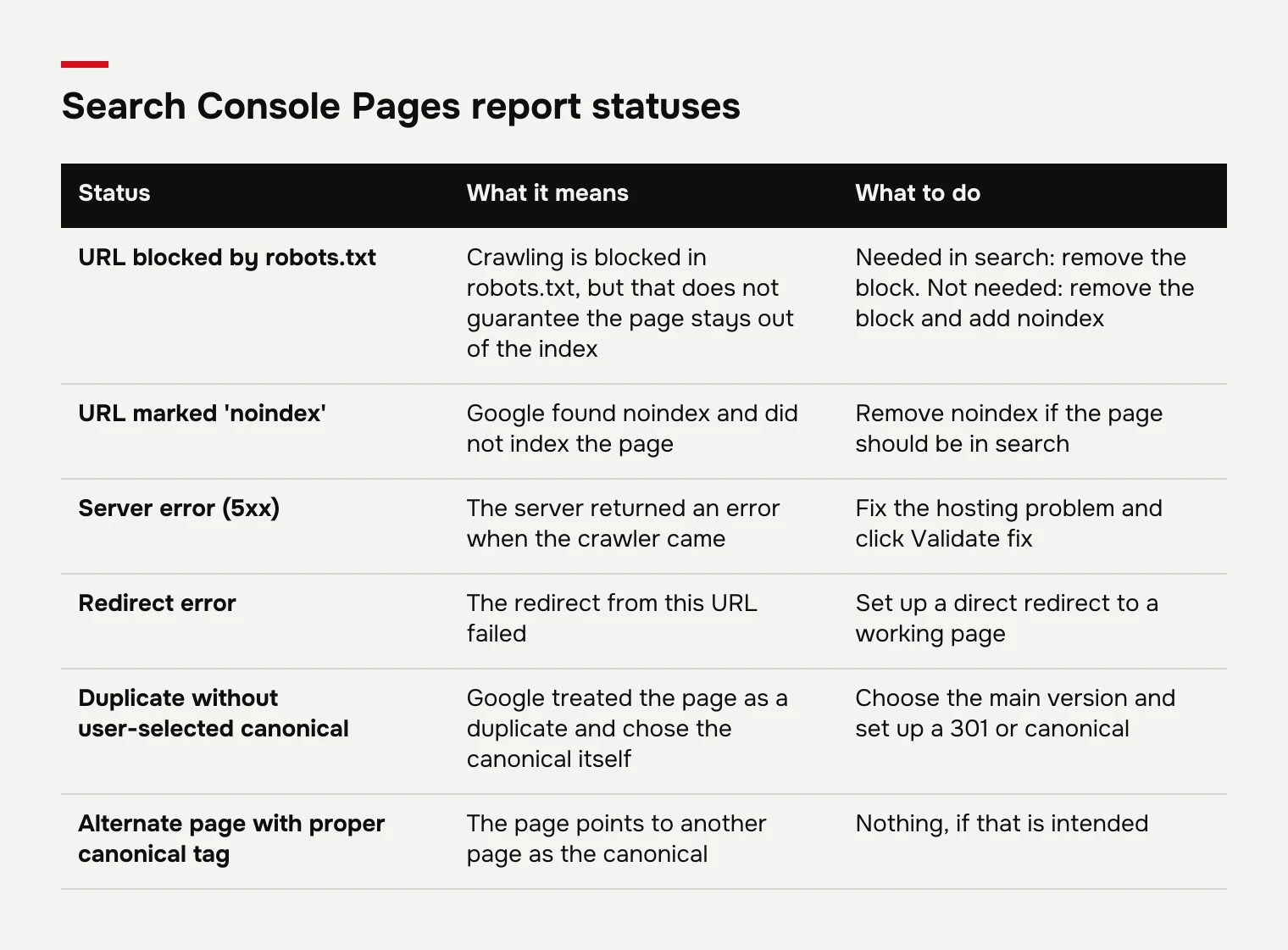
- The Pages report. Open Indexing > Pages. The Why pages aren’t indexed table shows why some pages were left out and whose side the cause is on, the website’s or Google’s.
- Manual actions. Go to Security & Manual Actions and make sure the Manual actions report is empty.
- robots.txt. Open
yoursite.md/robots.txtin a browser and look for aDisallow: /line. - A real search. If the site is indexed, search from a phone using the words your clients use, not your company name.
For a site under 500 pages, Google itself suggests using site: searches instead of the Pages report. But site: does not give a full list of indexed pages: John Mueller of Google has said so plainly, and accurate counts are only in Search Console.
Below are the 9 reasons in the order it makes sense to check them. The first four explain why a site is missing from the index; the rest explain why an indexed site is not seen. Section and status names follow the English Search Console interface.
Not indexed yet: how to check in Search Console
According to Google, the most common reason a site is not indexed is that it is simply too new. Crawling takes anywhere from a few days to a few weeks, and Google cannot predict or guarantee when, or whether, a page will be indexed. A quiet first week after launch is no reason to panic.
How to add your site to Search Console
- In Search Console, open the property selector and click ‘+ Add property’.
- Choose the property type. Domain covers all subdomains and both http and https, but can only be verified with a DNS record. URL prefix covers only the exact address, but can be verified with an HTML file or a meta tag.
- Verify ownership. The DNS record is added in your domain registrar’s or hosting provider’s control panel.
- Submit your sitemap. For a newly launched site this is especially helpful.
- Use URL Inspection to request indexing of the homepage. Google calls this the best first step for a new site.
Only the property owner or a user with full access can request indexing. If a contractor built your site, check that the Search Console property is registered to your company and not only to their account.
How long to wait and when to worry
Google says the path from submission to index usually takes from a day or two to a few weeks. After submitting a sitemap or an indexing request, wait at least a week before looking for a problem. Requesting the same URL again and again does not speed indexing up, and the requests themselves are subject to a quota. If URL Inspection still says the page is not indexed after a few weeks, move on to the next reasons.
What the Pages report tells you
In the Indexing > Pages report, Google explains why a page was not indexed. Each reason shows its source (Website or Google) and the validation status of your fix. After fixing something, click Validate fix: the check usually takes up to about two weeks. Do not expect 100% coverage. Google indexes the canonical versions of important pages, while duplicates, redirects and noindex pages normally stay out of the index.
robots.txt, noindex and a site closed to Google
Reason two is a site that blocks Google by itself without the owner knowing. Two different tools tend to get confused here.
The robots.txt file tells crawlers which URLs they may access. It does not prevent indexing: a page blocked in robots.txt can still end up in results, for example when other sites link to it. To keep a page out of Google, you need noindex or a password. And noindex only works if the page is not blocked in robots.txt, otherwise the crawler never sees it. Google does not support a noindex rule inside robots.txt.
How to check
- robots.txt. A
Disallow: /line underUser-agent: *blocks crawling of the whole site. If it was added during development and not removed at launch, the site stays blocked. - The noindex meta tag. Open the page source (Ctrl+U) and search for
noindex. It usually sits in ameta name="robots"tag. - The X-Robots-Tag header. noindex can also be sent in an HTTP header, which you will not see in the page source. Check the response headers in the Network tab of your browser’s developer tools.
- The mobile version. Google indexes a site by its mobile version, so a noindex on the mobile pages alone will also stop indexing.
- Passwords and staging addresses. A password on the test version is good practice. But if the live site is still behind a password or lives on a staging address, Google will not see it.
- CMS settings. If the site runs on a content management system, check whether the settings still have the no-indexing option that gets switched on during development.
What to fix
- Remove
Disallow: /from robots.txt if the whole site is blocked. - Remove noindex from pages that should be in search, on both the mobile and the desktop version.
- If a page should be hidden instead, unblock it in robots.txt and add noindex. This is what Google itself recommends.
- Request indexing of the homepage through URL Inspection.
No sitemap and no internal links
Reason 3 is that Google simply does not know some of your pages exist. The crawler needs a path to each page: a link from a page it already knows, or an entry in the sitemap. Google recommends that every page be reachable through a chain of links from the homepage.
A typical case: a separate page is made for an ad campaign, but nothing in the menu or the site’s text points to it. Crawlers find such orphan pages poorly or not at all. One more detail: Google finds addresses with a readable path, such as /services/dental-implants/, more easily than addresses with parameters, such as /?page=12.
How to check
- Walk through the site from the homepage using only links, and see whether you reach every service and every product.
- Find the sitemap, usually at
yoursite.md/sitemap.xml, and check that all important pages are listed. - In Search Console, see whether the sitemap has been submitted and whether it reports errors.
What to fix
Add links to important pages in the menu, the footer or the text of related pages. Submit the sitemap in Search Console. Keep in mind that a sitemap helps the crawler find pages but, in Google’s words, does not guarantee indexing or improve rankings. On Wix and Squarespace the platform typically tells Google about new pages itself; on other platforms it is worth checking.
Duplicates, www and http, and a wrong canonical
Reason 4 is that your site has several addresses and Google shows a different one than you expect. The same site often opens at four addresses: with http and https, with and without www. Google treats these variants as duplicates, picks one main (canonical) version and shows only that one in results.
This can cause a false alarm. For example, the owner searches site:www.yoursite.md, finds nothing and concludes the site is missing. In fact Google chose the version without www as canonical, and that one is fine. Google also does not index URLs that redirect, only the redirect target, and duplicate URLs should not be indexed.
How to check
- Open the site at all four addresses. It is correct when three of them redirect to the fourth.
- In Search Console, verify both the www and the non-www versions, or set up a Domain property that covers both at once.
- In the Pages report, look at the Duplicate without user-selected canonical and Alternate page with proper canonical tag statuses.
- In the page source, find
rel="canonical"and check that it points to the page’s own address, not to the homepage or the http version.
What to fix
Choose one main version and set up permanent (301) redirects from all the others. After moving to https or to a new domain, Google recommends exactly that: 301 redirects. Fix any canonical that points to the wrong place.
Is the site slow or broken on a phone?
Reason 5 is the mobile version, because Google indexes your site the way a smartphone sees it. Google uses the mobile version of the content for both indexing and ranking. A separate mobile version is not strictly required, but Google very strongly recommends one and advises responsive design, where one site adapts to any screen.
What to check on a phone:
- The mobile version has the same content as the desktop one. If part of the text or the price table is removed on phones, for Google it does not exist.
- Primary content should not load only after a user interaction such as a tap.
- The robots meta tags are the same on the mobile and desktop versions.
For speed, there are three Core Web Vitals: LCP (loading speed), INP (responsiveness to actions) and CLS (visual stability, so buttons do not jump around). A page passes when it meets the recommended targets for all three at the 75th percentile of visits. INP replaced the earlier FID metric in March 2024.
Open the site on your own phone over mobile data, not the office Wi-Fi. That way you see it roughly as a client does on a minibus across town.
Thin content that does not answer the search
Reason 6 applies to sites that are already indexed but do not show up for the searches that matter. If Search Console says a page is indexed, it is eligible to appear in results. But there is no guarantee it will appear for every search: Google takes the person’s search history and location into account.
Do not check the site by searching for the company name. Only people who already know you search by name. New clients search by service and city: “air conditioner installation Chisinau”, “accounting services for small companies”. If the site is a single homepage with a logo, a phone number and three lines of text, it has nothing to answer such a search with.
How to check
- Write down 5 to 10 searches you should be found for.
- For each one, find the page on your site that answers it. If there is none, you have found the cause.
- Type the search into Google and see what ranks at the top: service pages, prices, lists, answers to questions. Compare that with your page.
What to fix
Make a separate page for each service and write on it what a person wants to know: what is included, how long it takes, what it costs or what the price depends on, how to sign up. This is how the learnenglish.md site for an English school is built: its title and structure target the Russian search for “English courses Chisinau”, prices have their own page because visitors look for the price anyway, and the FAQ answers what people ask Google. Level tests bring in visitors who are not ready to sign up yet.
Your site is indexed, but people in Moldova don’t see it: language and region
Reasons 7 and 8 concern language versions and local search, where results depend on who searches and from where.
Reason 7: language versions without translation or without hreflang
Google does not detect a page’s language from the lang attribute or from hreflang; it looks at the text itself. If the menu is translated but the main content stays in one language, Google treats those versions as duplicates. Each language version needs its own address, such as /ru/ and /ro/, and its own full text.
hreflang markup tells Google which pages are translations of each other. The rules:
- each version lists itself and all the other versions;
- the links are reciprocal, otherwise Google ignores them;
- addresses are fully qualified, with https and the domain;
- the markup can go in the page code, in an HTTP header or in the sitemap, and the three methods are equivalent;
- a language code can stand alone (
ru,ro), but a country code without a language cannot; - for all other cases Google recommends an
x-defaultversion.
One example is the woof.md online store: two complete languages, Russian and Romanian, because both audiences buy in Moldova.
Reason 8: local search
Results depend on location, so someone in Chisinau sees something different from what you see on a business trip in Bucharest. Check your positions from Moldova, or ask someone in the city to search from their phone.
What to do if nothing helped
If the site is open to indexing and its pages are linked, but results still do not come, check manual actions and server errors. These are the last causes on the list, but they are visible at once if you know where to look.
Reason 9: Google manual actions
If a manual action has been applied to your site, some pages or the whole site will not be shown in results. Google reports this in the Manual actions report and in Search Console messages. Fix every affected page, then click Request Review. There is no point sending the request before everything is fixed.
Server and redirect errors
In the Pages report, check the Server error (5xx) and Redirect error statuses. The first means the server responded with an error when the crawler came by; the second points to a broken redirect. If the site goes down from time to time, that is a conversation with your hosting provider. After fixing, click Validate fix and allow up to about two weeks.
Symptom, cause, action
| Symptom | Likely cause | What to do |
|---|---|---|
site: finds nothing, site is under a month old |
New site | Search Console, sitemap, request indexing of the homepage, wait at least a week |
site: is empty, robots.txt has Disallow: / |
Crawling blocked | Remove the block |
| URL Inspection shows noindex | noindex in the code or header | Remove noindex on mobile and desktop |
| Homepage indexed, inner pages missing | No links and no sitemap | Links from the homepage, submit the sitemap |
| You search the www address, the index has the non-www one | Duplicates | One version, 301 redirect |
| Site indexed but not found for a service | No page for that search | A separate page for each service |
| Found in Russian but not in Romanian | Language versions | Separate addresses, translation, hreflang |
| Pages dropped out of results all at once | Manual action or server errors | Manual actions and Pages reports |
If you have no time to dig through Search Console, or several causes turned up at once, write through the contact page. If you are still planning a site, see how much a website costs in Moldova. The first conversation is free, up to 60 minutes, and the price and deadline are fixed before work starts.
Frequently asked questions
How do I add my website to Google?
Add the site as a property in Google Search Console with '+ Add property'. A Domain property covers all subdomains and both the http and https versions, and is verified with a DNS record. Once verified, submit your sitemap and use URL Inspection to request indexing of the homepage, which Google calls the best first step for a new site.
Why is my website not showing up in search results?
Either the pages are not in the index, or they are indexed but do not match the search you typed. Search Google for site:yoursite.md with SafeSearch turned off: if nothing comes up, look for a technical cause such as a new site, a robots.txt block or noindex. If results do appear, check whether the site has a page that answers what the client searches for, and remember that Google tailors results to search history and location.
How long does Google take to index a new website?
According to Google, from a day or two to a few weeks, and crawling alone can take from a few days to a few weeks. After submitting a sitemap or an indexing request, wait at least a week before assuming something is wrong. Repeated requests for the same URL do not speed things up, and Google cannot guarantee when indexing will happen.
How do I stop Google from being blocked from my site?
A site sometimes blocks itself: with a Disallow line in robots.txt, a noindex meta tag, a password, or a no-indexing setting left over from development. Check all four, and make sure noindex is not on the mobile version either, because Google indexes the site the way a smartphone sees it. If the Manual actions report in Search Console lists an action, fix every affected page and click Request Review.
Why does a site: search not show all my pages?
The site: operator does not give a complete list of indexed pages; accurate figures are only in Search Console. On top of that, Google does not index duplicates or redirecting URLs, and keeps only the canonical versions of important pages. Do not expect 100% of your URLs to be indexed.
- Page indexing report - Search Console Help,
- Why is my page missing from Google Search? - Search Console Help,
- Tell Google about localized versions of your page - Google Search Central,
- Mobile site and mobile-first indexing best practices - Google Search Central,
- Ask Google to recrawl your URLs - Google Search Central,
- Introduction to robots.txt - Google Search Central,
- Block Search indexing with noindex - Google Search Central,
- Google Search crawling and indexing FAQ - Google Search Central,
- Add a website or platform property to Search Console,
- Manual actions report - Search Console Help,
- Verify your business on Google - Google Business Profile Help,
- Web Vitals - web.dev,
- Core Web Vitals: LCP, INP, and CLS - Anderson Collaborative,
- Google: A 'Site:' Search Doesn't Show All Pages - Search Engine Journal,
- Google Search Console Page Indexing Report statuses - Vidern,

I help businesses grow: routine work goes to systems, so the team can focus on clients.
Founder of TOLK AI. I have been building websites since 2018 and working with US law firms since 2020, today as CTO. I built Woof CRM for my own dog treat brand.